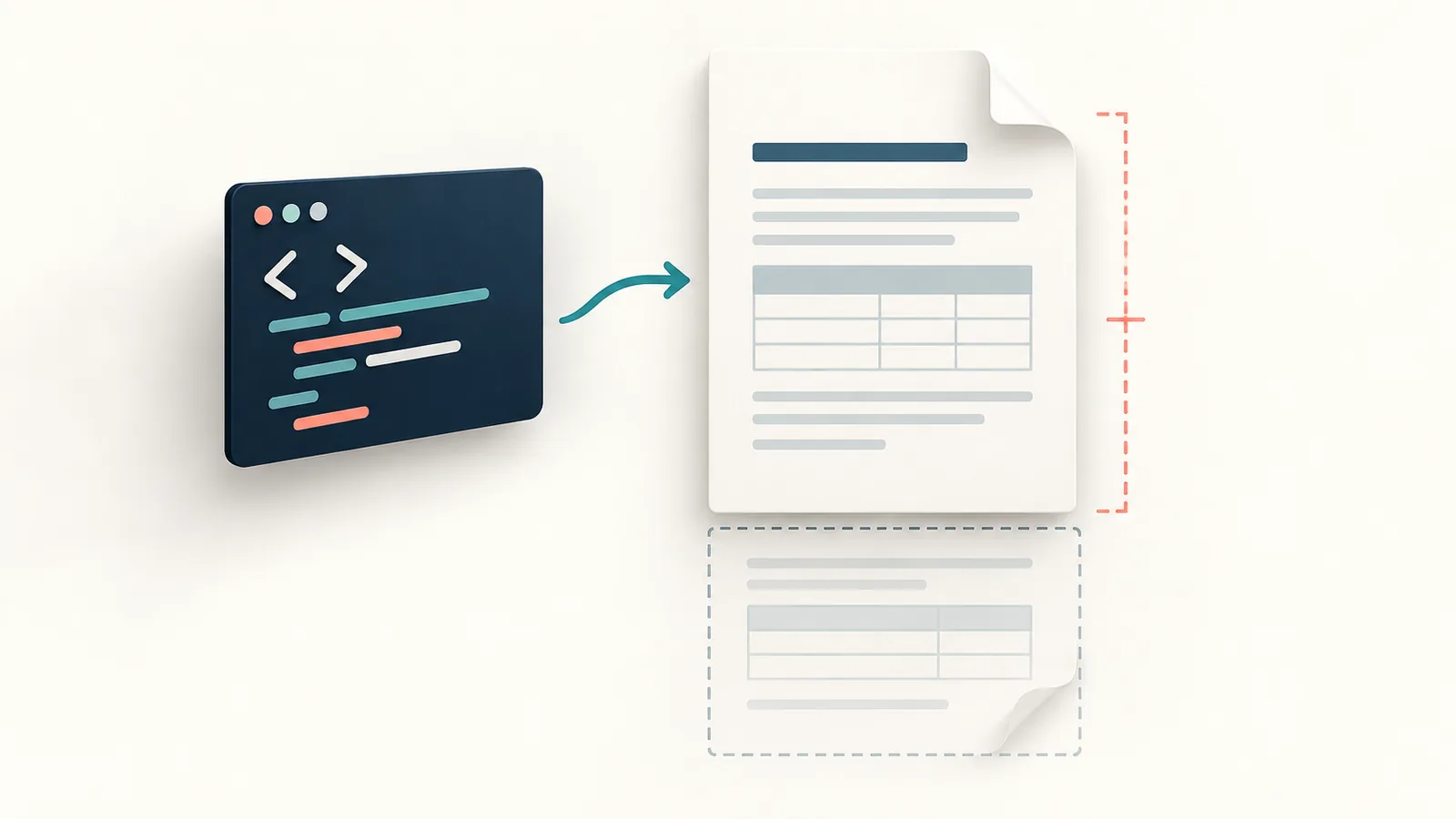
HTML-to-PDF conversion turns HTML content into a fixed-page document. The result depends on the method: a browser print workflow, a document-generation system and a simple preview-to-image converter do not offer the same layout, text or accessibility features. Choose the method before preparing the source.
Choose browser print or a simple converter
| Need | Starting point | Check before sharing |
|---|---|---|
| Save an existing web page | The browser’s print preview and Save as PDF option, where available | Navigation, page breaks, missing content and output text behavior. |
| Create a short self-contained layout | A simple pasted-HTML converter | Supported CSS, page length, external assets and whether output is an image. |
| Generate long reports, accessible documents or regulated submissions | A suitable document-generation or authoring workflow | Pagination, fonts, text, tags and the recipient’s exact requirements. |
A PDF is a snapshot, not a live website. Interactive controls, responsive layouts and changing data do not automatically transfer. Keep the original HTML or editable document so that corrections do not depend on editing the exported PDF.
What the Skyhoora converter currently supports
The HTML to PDF Converter accepts pasted HTML and optional CSS, displays a preview and offers Create PDF and Download PDF controls. It is not a URL-to-PDF service that fetches an entire website.
Its current conversion code captures the preview as an image and places that image on one portrait A4 PDF page. There is no automatic multipage layout step in that path. Long content can run beyond the page; small text may be difficult to read. Do not rely on this method for searchable/selectable text, clickable links, tagged accessibility or print-quality typography.
The inspected input handling removes HTML <img> elements, scripts, iframes and several other embedded elements. In the separate CSS field, @import statements and url(...) references are stripped. This is not a complete sanitizer or security guarantee for every HTML style. Avoid external assets and paste only your own trusted content. These limits matter more than a successful completion message.
Start with a short, trusted example
This illustrative snippet is a starting point for a compact handout, not a promise of final page fidelity:
<h2>Workshop information</h2>
<p>Bring a notebook and check the booking email.</p>
<ul><li>Arrival instructions</li><li>Contact details</li></ul>- Paste your own trusted, non-sensitive HTML into the HTML code field.
- Add simple self-contained CSS only if needed.
- Check the preview for missing elements, small text and excessive length.
- Select Create PDF, then download the result when available.
- Open the actual PDF in the intended viewer and inspect every page before sharing.
If the output is clipped, shorten the layout or choose a method with proper pagination. Do not assume adding a CSS page-break rule will make this preview-capture converter create extra pages.
Print styling belongs to the print workflow
For a page you control, browser printing can use a print stylesheet. @media print can hide navigation and adjust presentation; @page can describe page size, orientation and margins. Browser settings and rendering still need preview checks. MDN’s printing guide explains these mechanisms.
Those are browser print features, not a claim that every HTML-to-PDF converter honors them. Test the chosen method with the longest realistic content, not only a short heading and paragraph.
Review content, privacy and recipient requirements
The inspected conversion path builds the PDF in the browser. That is an implementation observation, not a complete audit of page scripts, data handling or security. Do not paste credentials, private tokens, customer records or untrusted code; use an approved process for confidential documents.
Check completeness, legibility, file size, page count and required text/accessibility behavior. If your source is actually a photograph or scan, follow the image-to-PDF workflow instead. For other inputs, the PDF conversion decision guide helps choose the right starting point.
Try the related free tools
Merge PDF | Split PDF | Image to PDF
Need help improving a website, SEO, or tracking setup? Request a free Skyhoora growth review.